
Jon is a seasoned journalist who has written definitive coverage of consumer tech at publications like Engadget, Android Authority, and BetaKit. He’s an expert on making tech accessible ranging from mobile and PCs to emerging platforms like wearables. When he’s not writing, he’s going on adventures with ihis family and is an avid photographer.
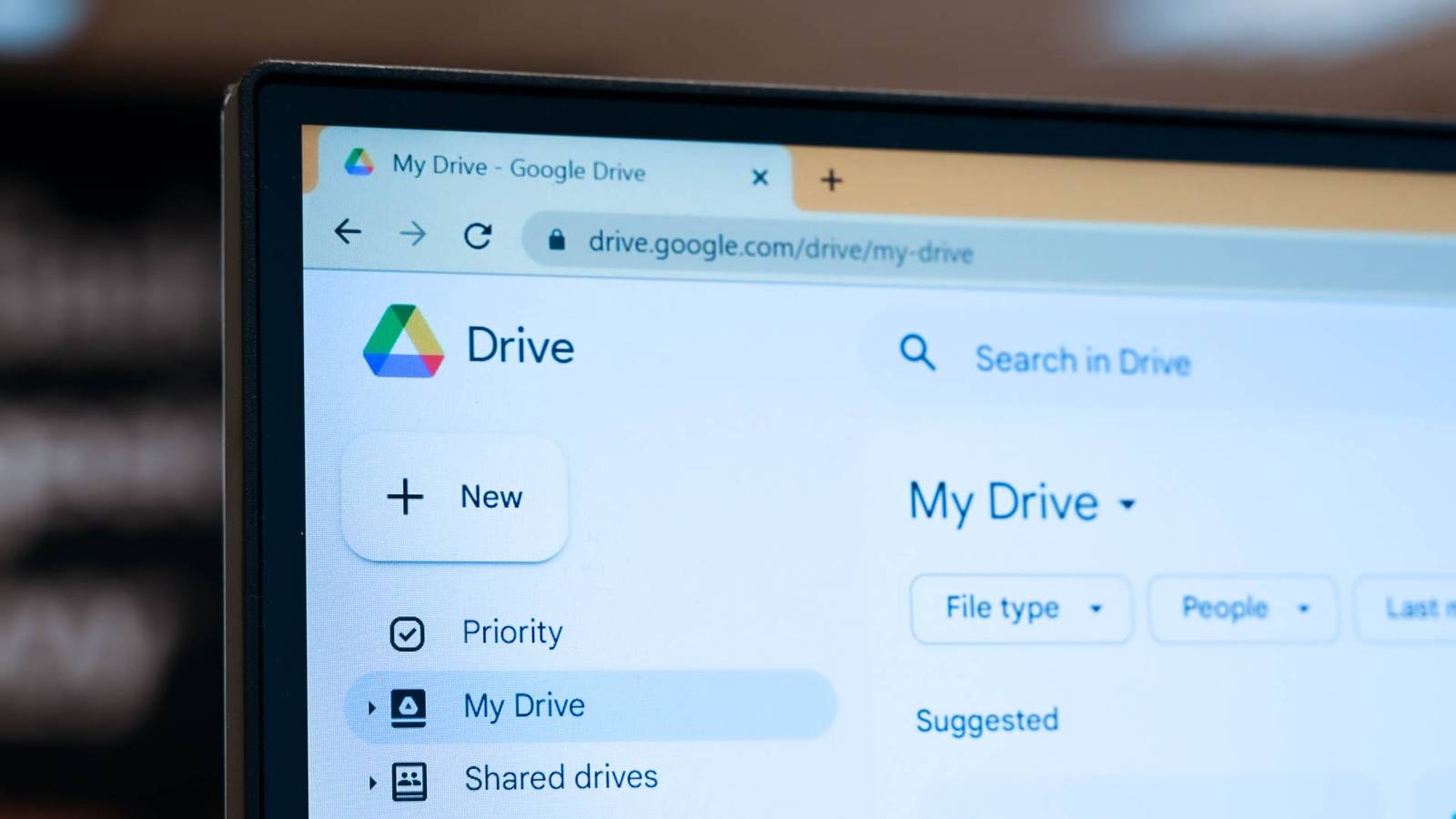
If you rely on Google Drive to seamlessly back up your computer’s photos, you’ll need to find an alternative very soon. Google is warning that it will end support for automatic syncing between Drive desktop backups and Photos on August 10, 2026.
As the company explains on a support page, you’ll have to upload any images directly to Google Photos on the web after that point. Here’s how to enable backups in Photos on your computer:
- Visit Google Photos on the web.
- Click + in the top right and click Back up folders.
- Choose the folders you want to back up.
- Grant photos permissions: choose Allow or Allow on every visit.
Backups will occur automatically, but only if you keep either the Google Photos website or its dedicated web app open. You also can’t automatically back up the Apple Photos app’s library on a Mac. For that, you’ll need to first sync those photos through iCloud and then use the Google Photos app on an iPhone or iPad to save your pictures.
What will happen to my photos in Google Drive?
They’ll stay safe, but avoid duplicates

The photos you’ve already uploaded to Google Drive will remain intact. You just won’t see new uploads transfer to Google Photos after the August 10 cutoff. You don’t have to do anything if you’re content with backing up the folder alone.
If you do intend to use Google Photos, though, you’ll want to stop backing up photo folders to Drive to avoid wasting space. This could push you into an upgraded Google One subscription you don’t need. Here’s how to disable backups for specific folders in Google Drive for desktop:
- Launch Drive for desktop.
- Click Settings.
- Click Preferences.
- Click Folders from your computer.
- Choose the folder you want to disable.
- Uncheck Sync with Google Drive.
- Click Done followed by Save.
You can also visit Google Photos on the web, select a photo, and click Info (i) to see how a given photo was uploaded to the service.
Google’s policy change is mainly important if you use a dedicated camera or have a legacy library that Photos hasn’t touched. If you’ve always taken snapshots with an Android phone or iPhone, there’s a good chance those images are already in the cloud through the Google or Apple Photos apps. Just remember that it’s also good to have alternative backups, such as hard drives or additional cloud services, to avoid creating a single point of failure.